How I Publish a 5-Language WordPress Gallery in 5 Minutes with WPML
Category: WordPress · WPML · Tools
Author: Dominique Pérarnaud — HCL Ambassador, data101.es
If you manage a multilingual WordPress site with WPML and publish image galleries regularly, you already know the pain. You upload your photos, set the alt text and captions — then you realise you need to do that again in four more languages. Then you create the post, duplicate it for each language, link the translations in WPML, assign the featured image to each one. An hour later, the gallery is live.
I built a tool that compresses that entire process into about five minutes. This post explains what it does, how it works technically, and who it is for.
The problem: multilingual gallery publishing is tedious by design
My client is a professional concert photographer based in the Basque Country. She publishes between two and four gallery posts per week, each one in five languages: English, Spanish, French, German, and Basque. Her site runs WordPress with WPML.
Each gallery involves:
- 15 to 30 photos that need to be resized, renamed consistently, and stamped with a copyright watermark before upload
- Alt text, caption, and description set individually for every image in every language — that is up to 150 individual metadata fields per gallery
- Five posts created and individually configured, each containing a gallery block, a
- heading, and a description
- All five posts properly linked as WPML translations with a shared translation group (trid)
- A featured image uploaded and assigned to all five posts
Done manually through the WordPress admin, this takes close to an hour. With 150 to 200 posts per year, that is a significant chunk of time spent on mechanical work that adds no creative value.
The solution: Gallery Publisher + Photo Processor
Gallery Publisher is a standalone browser-based tool — a single HTML file — paired with a small companion PHP plugin that adds two custom REST API endpoints to WordPress.
No software to install on your computer. You open the file in Chrome or Edge and it connects to your WordPress site using the standard Application Password authentication.

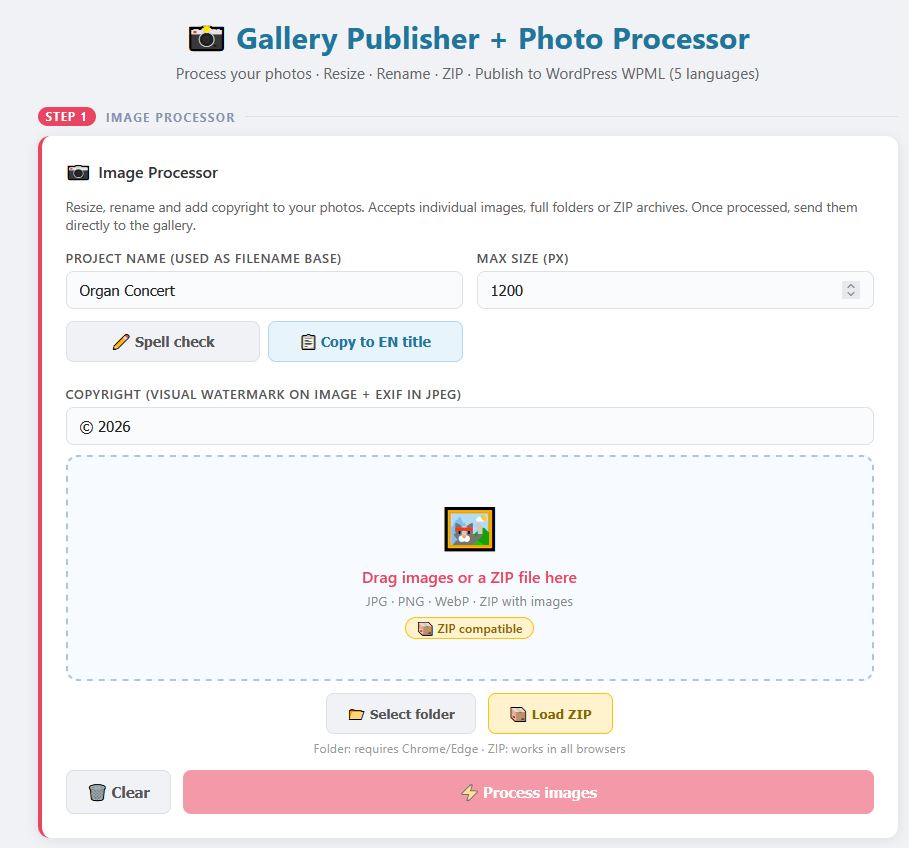
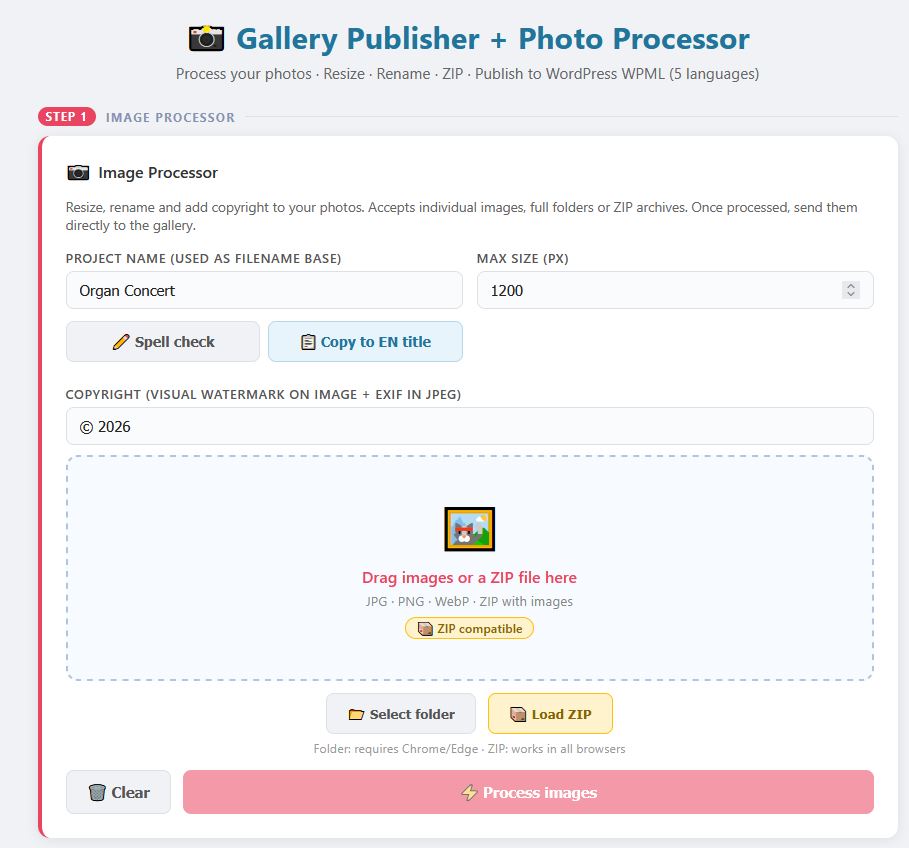
Step 1 — Process your photos
Drop your images into the tool. It runs entirely in the browser using the Canvas API:
- Resizes each image to a configurable maximum dimension (default 1200 px), preserving aspect ratio
- Burns a copyright watermark into the bottom-right corner of each image
- Writes the copyright string to the EXIF metadata of JPEG files using piexif.js
- Renames files sequentially:
ProjectName_001.jpg,ProjectName_002.jpg, and so on
You can drag individual files, select a full folder (Chrome and Edge), or drop a ZIP archive — including ZIPs exported from macOS with __MACOSX folders, which are filtered out automatically.
Processing 20 images takes about 30 seconds. When it is done, one click sends them directly to the gallery publisher below.
Step 2 — Write your content once, translate in one click
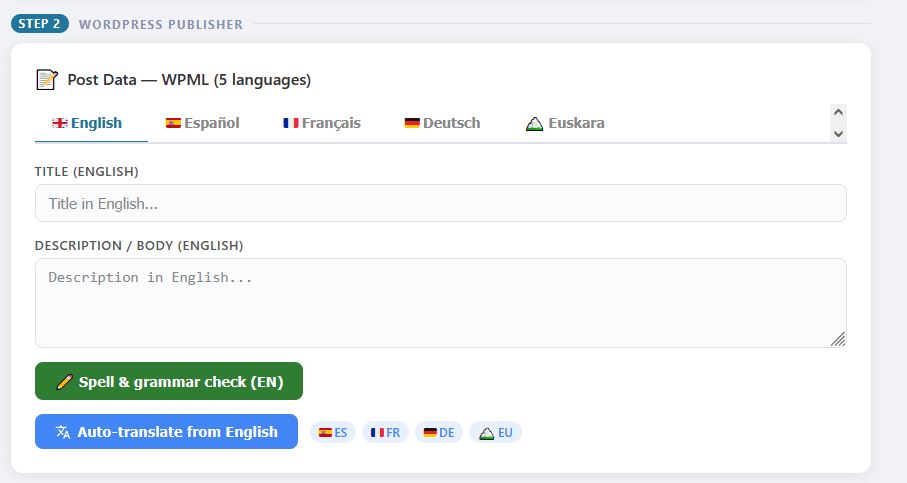
The publishing section has a tab for each of the five languages. You write your title and description in English, then click Auto-translate from English. The tool calls the Google Translate API and fills in the other four languages in a few seconds.
Each language tab also has a grammar and spell check button powered by the LanguageTool API — no account required — which handles English with en-US and Spanish with es.
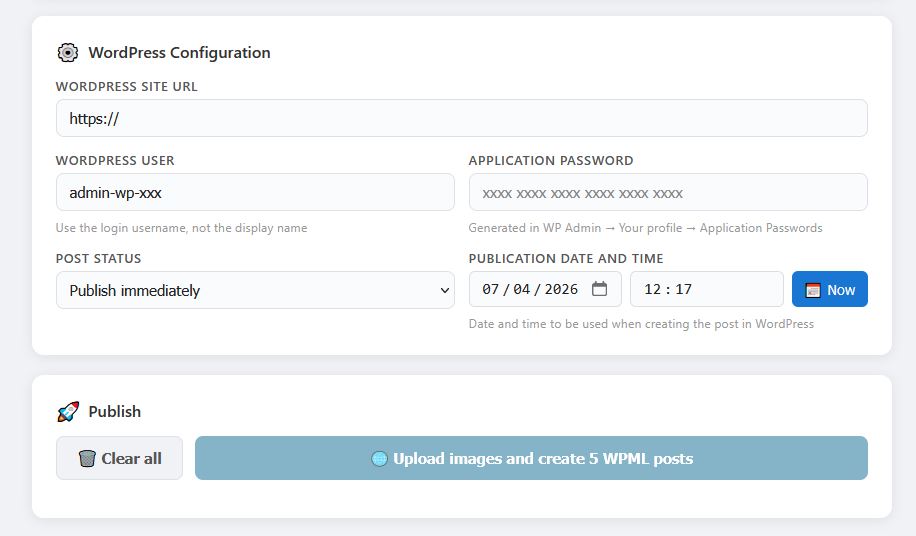
Step 3 — Publish everything at once
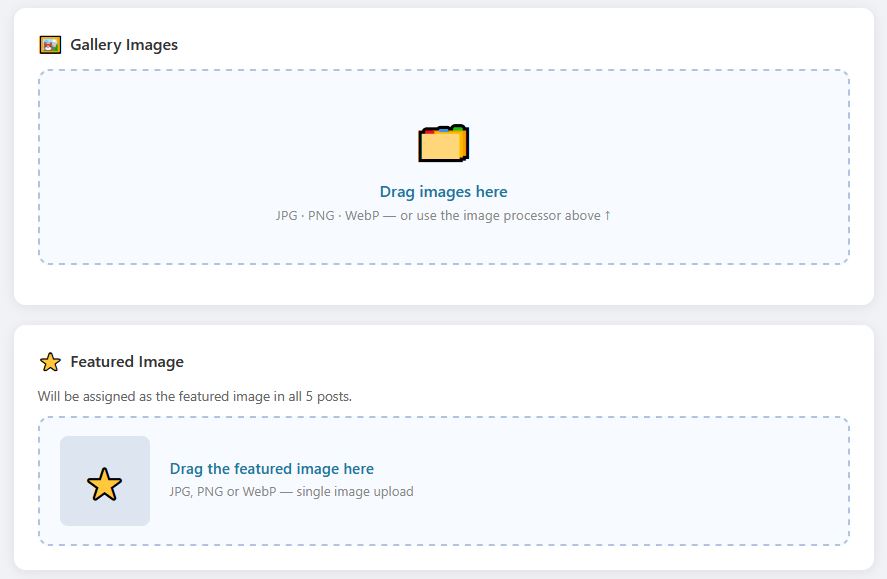
Click publish. The tool:
- Uploads all gallery images to the WordPress media library via
POST /wp-json/wp/v2/media - Sets title, alt text, caption, and description in all five languages for every image — in a single batched REST call to the companion plugin endpoint
- Creates five posts — one per language — each containing a native WordPress gallery block (no shortcode plugins required), a heading, and the body text
- Links all five posts as WPML translations using
wpml_set_element_language_details, with the response confirming the sharedtridand listing all linked post IDs - Uploads the featured image and assigns it to all five posts
The results table at the end shows post ID, publication status, and direct View and Edit links for each language. Total time from dropping in the images to having five live, correctly linked posts: four to five minutes.
The technical part: what the companion PHP plugin does
The companion plugin registers two REST endpoints under the gallery-publisher/v1 namespace, both secured with standard WordPress Application Password authentication.
Endpoint 1 — Bulk multilingual media metadata
POST /wp-json/gallery-publisher/v1/media-meta
The payload is an array of objects, each containing a media ID, a language code, and the four metadata fields. The endpoint loops through each item, calls wpml_switch_language( $lang ), updates the attachment post with wp_update_post, then calls wpml_switch_language( 'all' ) to restore the global language context before the next iteration.
That last part — switching back to 'all' explicitly after each update — is important. If you omit it, subsequent queries inside the same REST callback can bleed into the wrong language context. It is not obvious from the WPML documentation, but it is the kind of thing that causes subtle bugs that are hard to reproduce.
Endpoint 2 — WPML translation linking
POST /wp-json/gallery-publisher/v1/wpml-link
Payload:
{ "en": 101, "es": 102, "fr": 103, "de": 104, "eu": 105 }
The endpoint calls wpml_set_element_language_details for each post, assigning a shared trid. One thing worth noting: the element_type parameter must be prefixed with post_ — so post_post for standard posts, post_page for pages, and so on. Passing just post silently fails to set the trid correctly. The endpoint returns the trid and the full list of linked post IDs so the client-side tool can verify the result.
A note on the alternative approach: you can create translation posts via the standard WP REST API by appending ?lang=fr&translation_of=101 to the posts endpoint, and WPML will handle it. This works, but the trid linking is not always consistent when creating multiple translations in rapid succession. Calling wpml_set_element_language_details explicitly for all five posts after creation is more robust and gives you a verified confirmation.
Who is this for
Photographers and artists who publish gallery-heavy multilingual sites and want to spend their time on content, not on admin work.
Agencies managing multilingual WordPress sites for clients in the cultural, tourism, or events sectors — particularly in multilingual regions like the Basque Country, Catalonia, Switzerland, Belgium, or Luxembourg.
WordPress developers working with WPML who need a reference implementation of bulk multilingual media metadata and translation linking via the REST API. The companion plugin is a clean, documented starting point for that pattern.
The tool requires WordPress with WPML installed, and the companion PHP plugin deployed on the server. It works with any theme. It does not require WooCommerce, Elementor, or any other plugin.
A note on the WPML REST API
Working on this tool gave me a much clearer picture of how WPML exposes its internals through filters and hooks rather than a formal REST API layer. Everything the companion plugin does — language switching, metadata updates, translation linking — goes through WordPress action and filter hooks that WPML provides (wpml_switch_language, wpml_set_element_language_details, wpml_object_id, and others).
This means the approach is fairly version-stable: as long as WPML maintains these hooks (which they have done consistently), the endpoints will keep working across WPML updates.
If you are building something similar and have questions about the endpoint implementation, feel free to reach out or leave a comment below.
Get the tool
Gallery Publisher + Photo Processor is available. Contact me at · dperarnaud@data101.es
It is delivered as a single HTML file with the companion PHP plugin included. Setup takes about ten minutes: deploy the PHP plugin, generate a WordPress Application Password, and you are ready to publish.
Dominique Pérarnaud
San Sebastián, Basque Country
data101.es · dperarnaud@data101.es · LinkedIn